Your task list is one of the most personal databases you own — years of projects, contexts, and the shape of how you actually work. You should never feel locked into one app to keep it. This guide covers the three ways to get a complete copy of your OmniFocus data out, how to choose between them, and what to do when an export misbehaves.
It is written to be useful whether you are switching apps, making a backup, or just want to know your data is portable. (We make SingleFocus, a cross-platform GTD app, and yes — one of the paths below produces a file we can import. But the export is yours regardless of where it goes. That principle has its own page.)
The short version. On OmniFocus 3.8 or 4 with a Pro licence, install the free SingleFocus export plug-in and run it — you get one JSON file with everything, including repeat rules and review intervals. On older versions, or without Pro, use File → Export → CSV. The rest of this guide is the detail behind those two sentences.
THE THREE PATHSWhat "export" means in OmniFocus
OmniFocus offers three fundamentally different ways out, and they preserve very different amounts of your data. Picking the right one is the whole game — so here is what each actually keeps.
1. CSV — the universal path
A spreadsheet-style dump available on every version of OmniFocus, on both Mac and iPhone/iPad. On a Mac it is File → Export; on iOS it is the only export format offered. CSV captures task name, project, tags, defer and due dates, completion, flagged state, estimated duration, notes, and the project hierarchy (encoded in the outline numbering). What it drops is everything structural: repeat rules, review intervals, and the sequential/parallel distinction. Good enough for a readable archive; lossy if you want to rebuild your system elsewhere.
2. TaskPaper — the middle path (Mac only)
OmniFocus can export plain text in a TaskPaper-flavoured format: hierarchy by indentation, and properties written as @defer(...), @due(...), @flagged, @parallel(false) tags. It preserves more meaning than CSV — including the sequential flag and some repeat information — and it is human-readable. The catch: it is Mac-only, and the format is convention, not a strict schema, so importers have to interpret it.
3. The JSON plug-in — the complete path
OmniFocus has a built-in JavaScript automation layer (Omni Automation) on both Mac and iOS. A plug-in can walk your entire database and emit structured JSON with everything: folders, the full tag hierarchy, projects with status and review intervals, the complete task tree, and — crucially — repeat rules as standard iCalendar RRULE strings plus OmniFocus's repeat method (fixed, defer-again, due-again). This is the only path that loses nothing structural. We maintain a free, open-source one: singlefocus-co/omnifocus-export. It runs entirely on your device, makes no network requests, and never writes to your database — the security model is documented and the whole thing is one readable file you can audit in a minute.
DECISION MATRIXWhich path is available to you
Availability depends on three things: your OmniFocus version, your device, and whether you have the Standard or Pro licence. Find your row.
| Your setup | Best path | Fallback | Notes |
|---|---|---|---|
| OmniFocus 4 — Pro (Mac / iPhone / iPad) |
JSON plug-in | CSV | Full fidelity. Same plug-in on every device. |
| OmniFocus 3.8+ — Pro (Mac / iPhone / iPad) |
JSON plug-in | CSV | Automation arrived in 3.8. Free update within v3. |
| OmniFocus 3 / 4 — Standard | CSV | TaskPaper (Mac) | Plug-ins need Pro. Most GTD power users already have Pro (perspectives are Pro-only). |
| OmniFocus 3.0–3.7 | CSV | Update to 3.8+ first | Pre-automation. The update is free and unlocks the plug-in. |
| OmniFocus 2 (Mac) | CSV | TaskPaper (Mac) | No automation at all. Note: v2 has contexts, not tags — one context per task. |
| OmniFocus 2 (iOS) | Discontinued | Export from a Mac | The iOS app won't run on modern iPhones. Treat as retired. |
One simplification falls out of this: if you keep custom perspectives, you have Pro, which means the plug-in is open to you — so for most serious OmniFocus users, the complete path is the right path.
CSV & TASKPAPERThe built-in exports, step by step
CSV on a Mac
- Select the items you want (or show everything in a flat list first, so nothing is hidden by a perspective filter).
- Choose File → Export…
- Pick the comma-separated values (CSV) format and save.
There is a UTF-16 variant of the export for databases with non-ASCII characters. If your tasks contain accented characters and the plain export looks garbled when opened, re-export using that variant.
CSV on iPhone or iPad
- Open the app's settings and find the data / export option.
- Choose Export to CSV — on iOS this is the only export format.
- Save the file through the standard share sheet (to Files, email, or a cloud drive).
TaskPaper (Mac)
Export plain text from the File menu, or select tasks and use Copy as TaskPaper to put a TaskPaper-formatted copy on the clipboard — that route carries properties like due dates, tags, and repeat type. Useful when you want something both portable and readable.
THE PLUG-INThe complete export, step by step
This is the path that keeps everything. It needs OmniFocus 3.8 or 4 with a Pro licence, and works identically on Mac, iPhone, and iPad.
Install
- Download the latest release of singlefocus-co/omnifocus-export — it comes as a
.zip(see the warning below for why). - Unzip it to get the
singlefocus-export.omnifocusjsfile. - Mac: double-click the file and confirm the install. iPhone/iPad: save it to Files, tap it, choose to open it in OmniFocus, and confirm.
Why a zip, and not the bare file? The .omnifocusjs extension is unknown to most browsers and web servers, so a bare file frequently downloads as a .txt and silently won't install. Distributing it zipped sidesteps that. If you do end up with a .txt, the fix is in the troubleshooting section below.
Run it
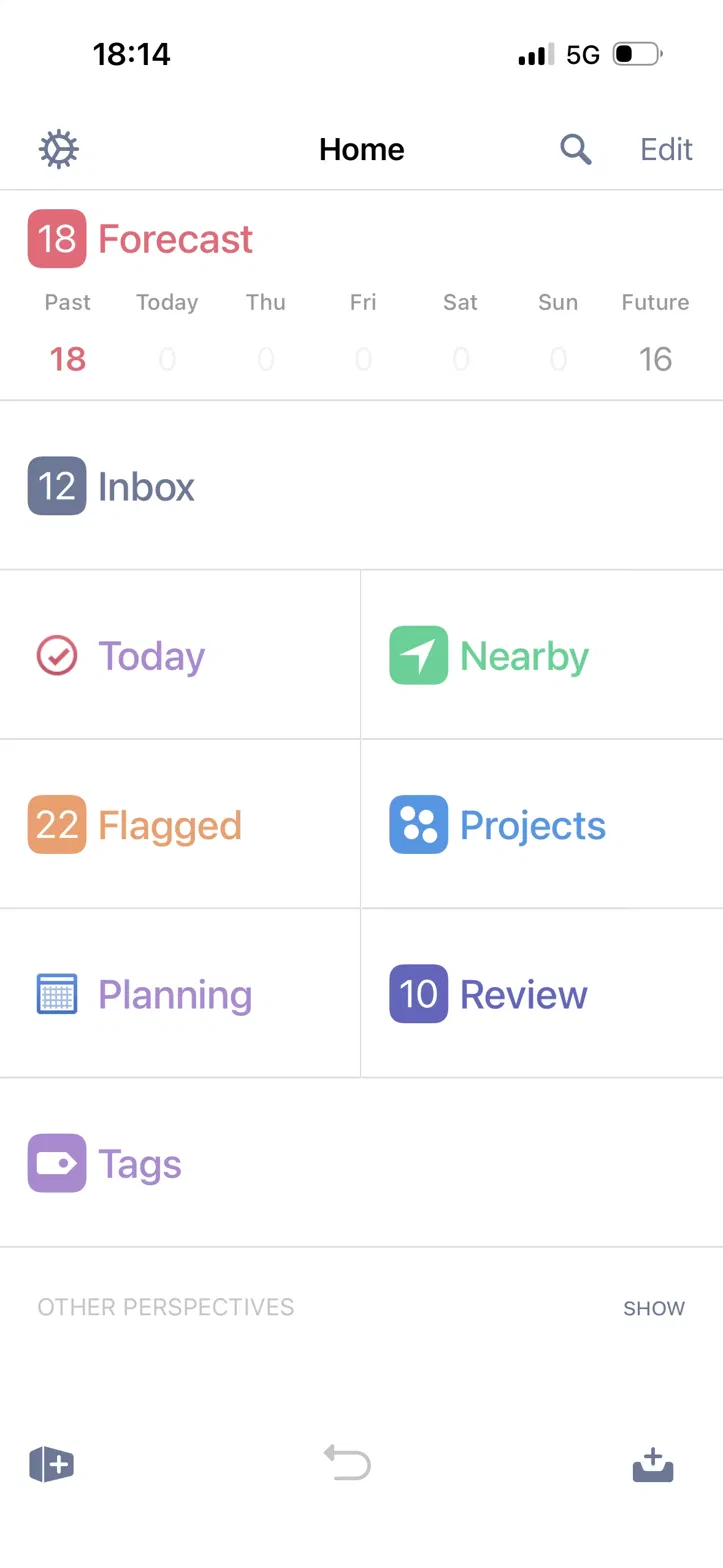
Where the run command lives differs between OmniFocus 4 and 3 — this trips up almost everyone on OmniFocus 3, so it has its own troubleshooting entry too.
- OmniFocus 4: open the Automation menu (or Quick Open) and choose Export for SingleFocus.
- OmniFocus 3: the Automation button only appears in the Projects, Tags, and Review perspectives — not on the Home screen. Open Projects, tap the automation icon in the toolbar, and choose the action there. Tip: if you'd rather not hunt for it, turn on Developer Tools in OmniFocus 3's Settings — that surfaces the Automation button everywhere, including the Home screen bottom bar, so it's always one tap away.
On first run, OmniFocus shows a one-time security confirmation. Approve it, then choose where to save the JSON file. You'll get a summary like "12 projects, 552 tasks, 3 tags, 3 folders exported."
TROUBLESHOOTINGWhen the export misbehaves
These are the real failures we hit getting this working on actual devices — with the exact error text, so you can find this page by searching for it. Each one has a one-line fix.
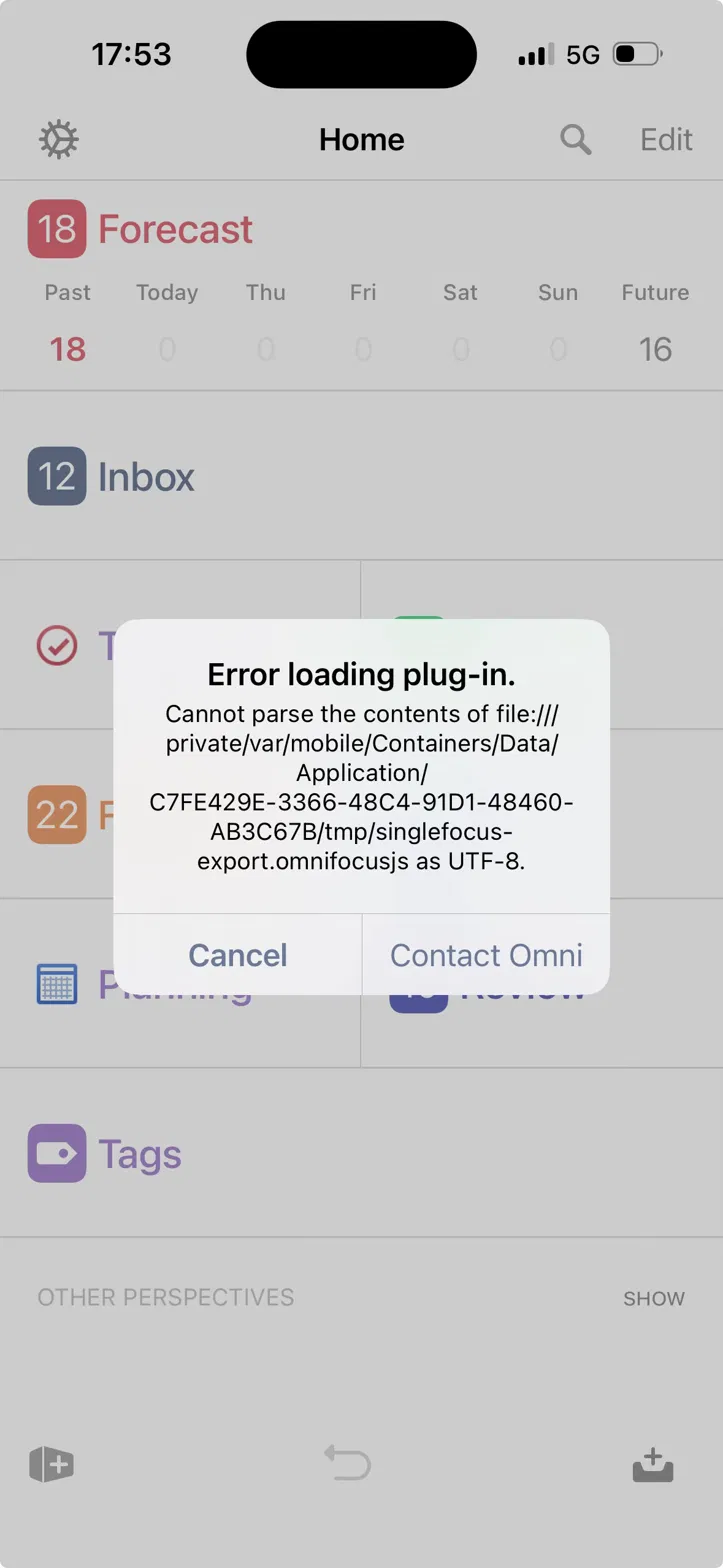
"Cannot parse the contents of file … as UTF-8."
Error loading plug-in. Cannot parse the contents of file:///…/singlefocus-export.omnifocusjs as UTF-8.The plug-in file was re-encoded somewhere in transit — usually by opening it in a text editor or preview, or passing it through an email gateway, which can convert a character and break the file's UTF-8 encoding. OmniFocus then refuses to load it.
Fix: re-download the file fresh from the Releases page and don't open it in an editor before installing. (The plug-in is intentionally written as pure ASCII to make this as unlikely as possible — but a re-encode in transit can still trip it.)
The file downloaded as .txt
singlefocus-export.omnifocusjs.txt
Expected when downloading a bare .omnifocusjs file: the server hands it over as plain text and the browser appends .txt. A file with the wrong extension won't install.
Fix: download the .zip release instead and unzip it — the extension stays intact. If you already have the .txt, rename it in Files to end in .omnifocusjs (delete the trailing .txt) and confirm when the system warns about changing the extension.
"I can't find where to run the plug-in" (OmniFocus 3)
On OmniFocus 3 the Automation button is not on the Home screen by default — which makes it look like the install failed when it didn't.
Fix: open the Projects perspective and look in its toolbar; the automation icon appears there once a plug-in is installed. It also shows up in the Share sheet of any task. Or, to put it everywhere: enable Developer Tools in OmniFocus 3's Settings, which adds the Automation button to the Home screen bottom bar as well — so you don't have to dig into a perspective to find it. On OmniFocus 4 it's in the Automation menu directly.
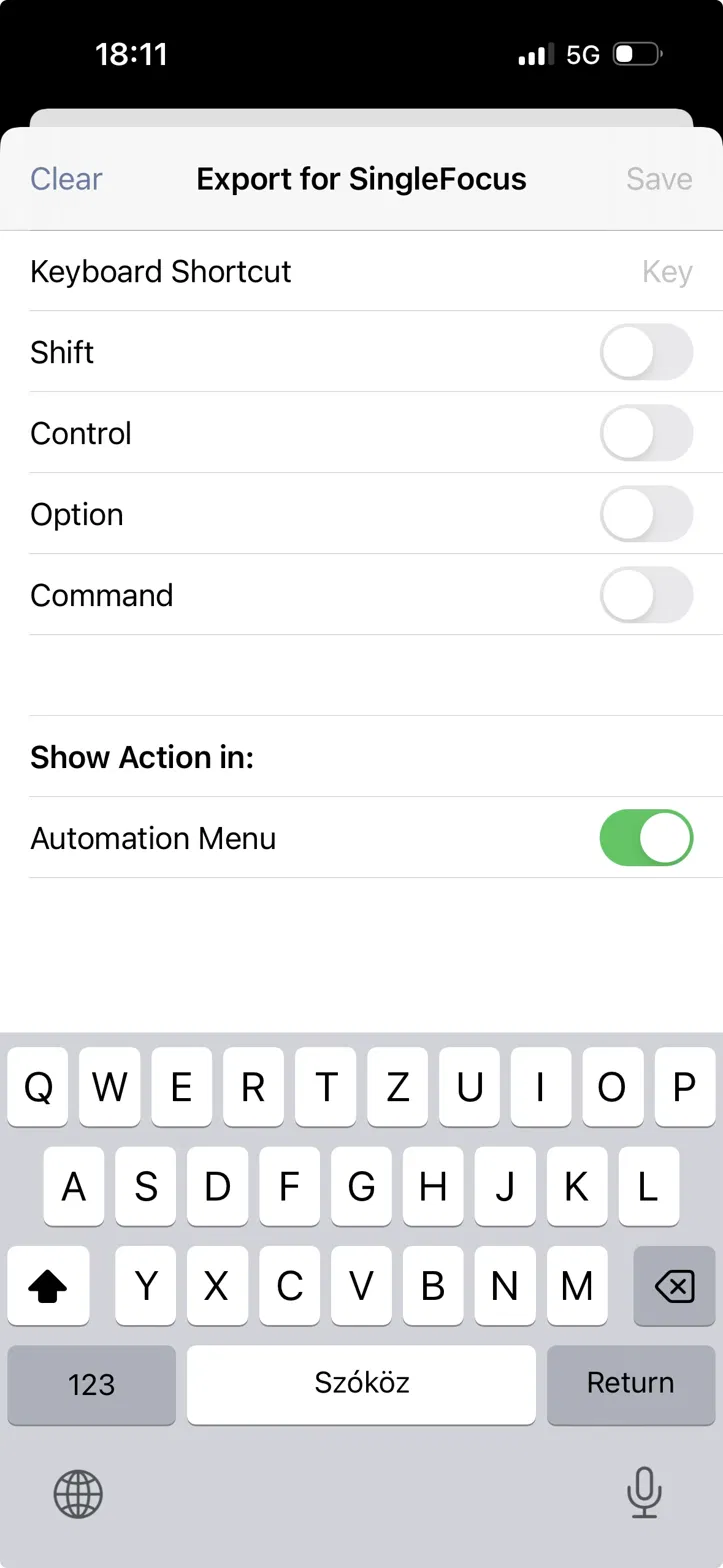
The action opens a settings sheet instead of running
Tapping the chevron next to the action opens its settings (keyboard shortcut, visibility) rather than running it. Nothing is wrong — you just opened the wrong control.
Fix: make sure Show Action in: Automation Menu is on, then dismiss this sheet and tap the action's name (not its chevron) from the Automation menu to run it.
"It says I need Pro"
Plug-ins are an OmniFocus Pro feature — Omni's restriction, not the plug-in's.
Fix: on the Mac, use File → Export → CSV as a fallback (less complete — no repeat rules or review intervals). In practice this rarely bites GTD power users, since custom perspectives are also Pro-only, so most people who'd want a full export already have Pro.
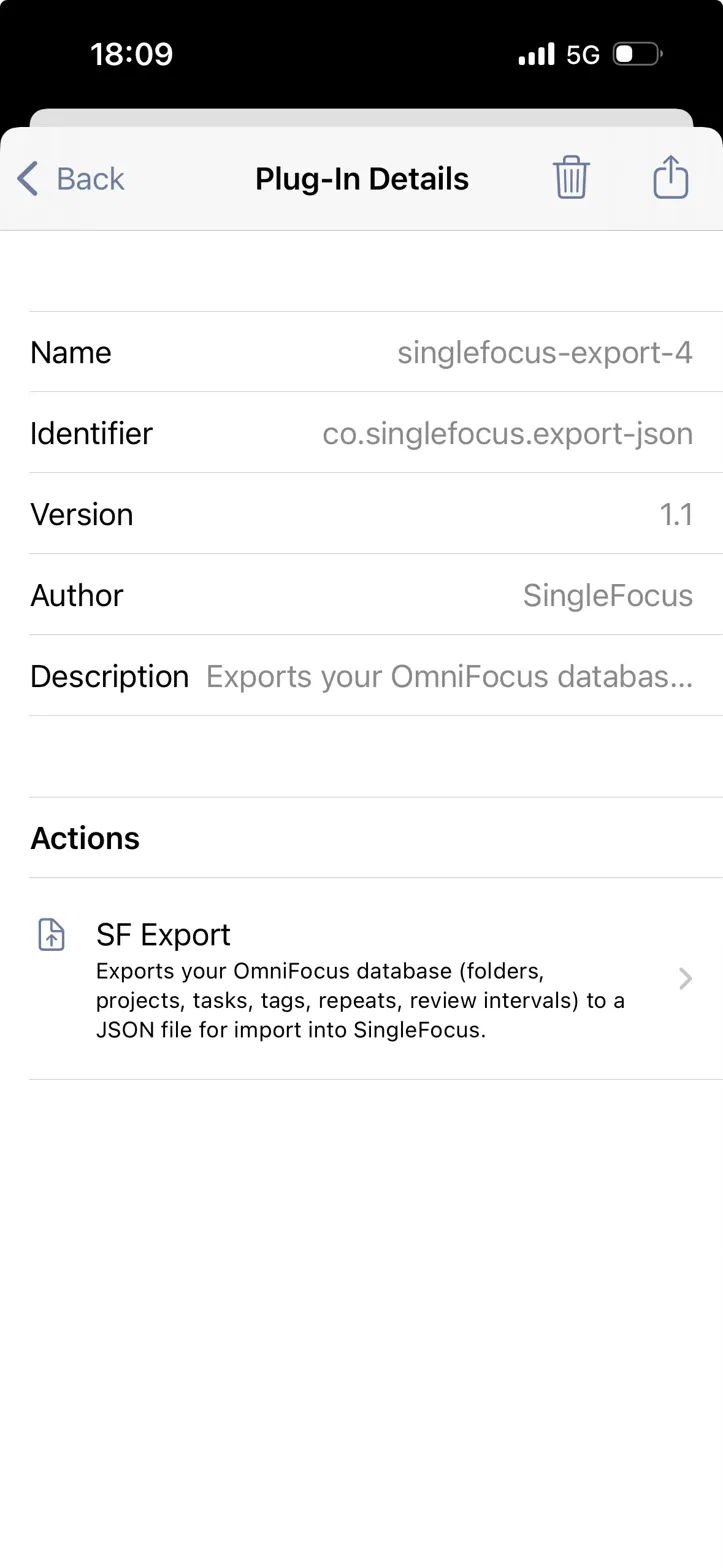
Duplicate "Export for SingleFocus" entries
Re-installing the plug-in creates numbered copies (…-2, …-3), so you can end up with several identical actions and run a stale one.
Fix: open the plug-in list (or the Plug-In Details screen) and delete the older copies, keeping only the latest version.
VERIFYConfirm your export is complete
Whichever path you used, do a quick sanity check before relying on the file:
- Open it. A CSV opens in any spreadsheet app; a JSON file opens in any text editor. Confirm your projects and tasks are actually there.
- Check the count. The plug-in tells you how many projects, tasks, and tags it exported — compare that to roughly what you expect.
- Check the encoding. If accented characters look wrong in a CSV, re-export with the UTF-16 variant.
- Check the extension. A plug-in download should end in
.omnifocusjs(or.jsonfor the export it produces), not.txt.
WHAT TRAVELS, WHAT DOESN'THonest limits
No OmniFocus export is perfectly lossless, and it's better to know the gaps up front than discover them later:
- Perspectives can't be read by the automation API — their rules don't come out in any export. You rebuild them in your new app.
- Attachments aren't exposed by the export API.
- Rich-text formatting in notes comes out as plain text.
- OmniFocus 2's contexts map to a single tag per task on import — v2 predates multiple tags.
The JSON plug-in keeps everything else: the project and folder structure, the full tag hierarchy, defer and due dates, completion and drop dates, flags, estimated durations, review intervals, and repeat rules. A good importer should show you a report of exactly what came through, so nothing fails silently.
Moving from OmniFocus to SingleFocus?
SingleFocus is a cross-platform GTD app with defer dates, sequential projects, perspectives, tags, and a real weekly review — without the Apple-only constraint. The JSON export above is built to import directly, repeat rules and all.
If you're weighing the switch, the OmniFocus alternative comparison lays out the feature-by-feature detail, and the Data Manifesto covers how we treat the data once it's in.
Start free →